Epsilon 267 Mini — Player Help
A quick guide to starting a session, joining a crew, reading the game screen, and declaring actions.
Chapter 1: What this game is
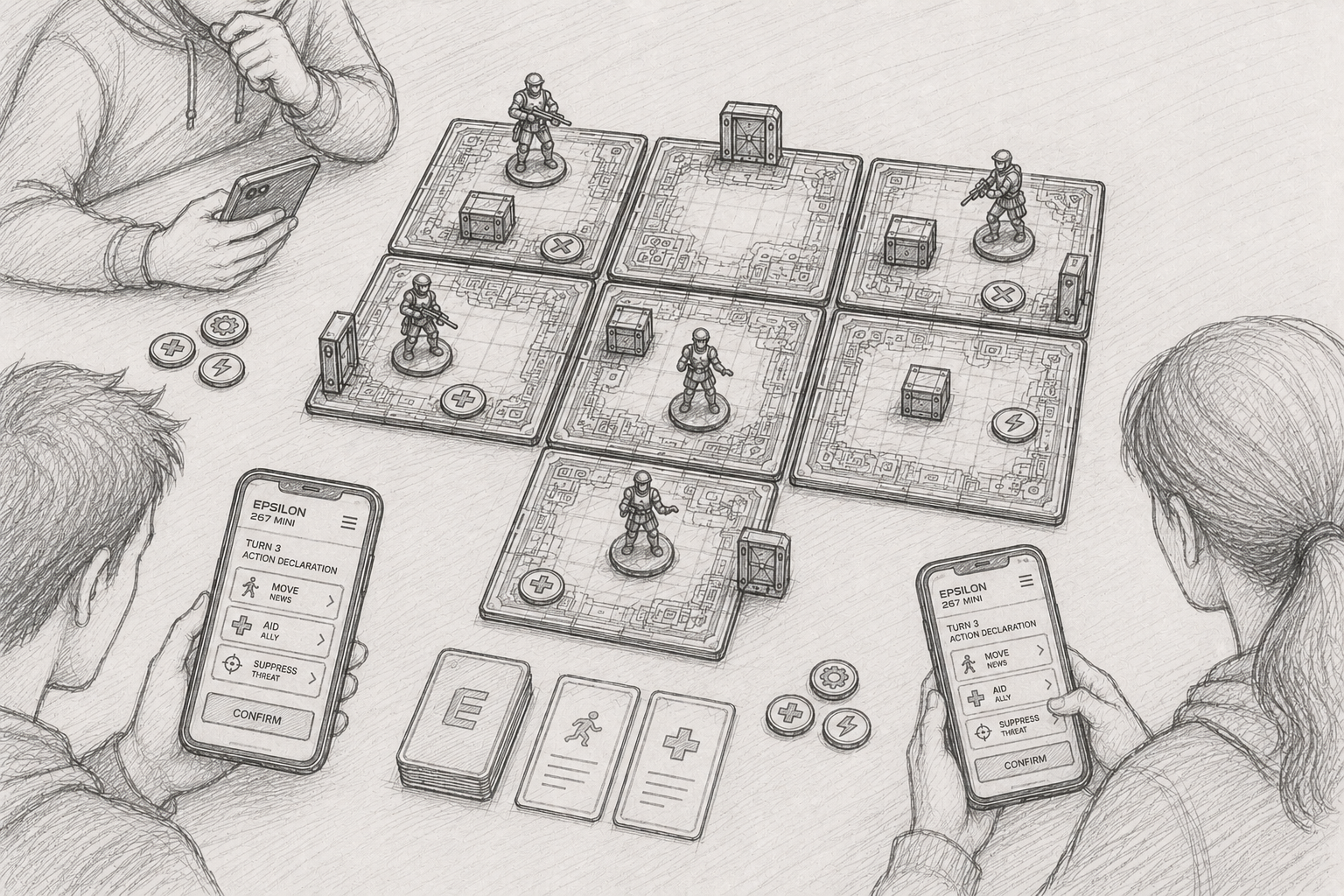
Epsilon 267 Mini is a cooperative sci-fi board-game assistant. The physical board, figures, cards, objects, and tokens are handled by players at the table, while the web app manages session flow, turn structure, action declarations, and narrative feedback.
The current scenario sends the crew into a damaged station under hostile system control. Your job is to coordinate, survive, complete the mission objective, and escape before the situation collapses.
- The web app does not replace the physical board; it tells players what to update.
- Players should keep the table state synchronized with the app instructions.
- Most important choices are made during the action declaration phase.
- Narrative text explains what happened after the app resolves the turn.
Chapter 2: Starting from the main screen
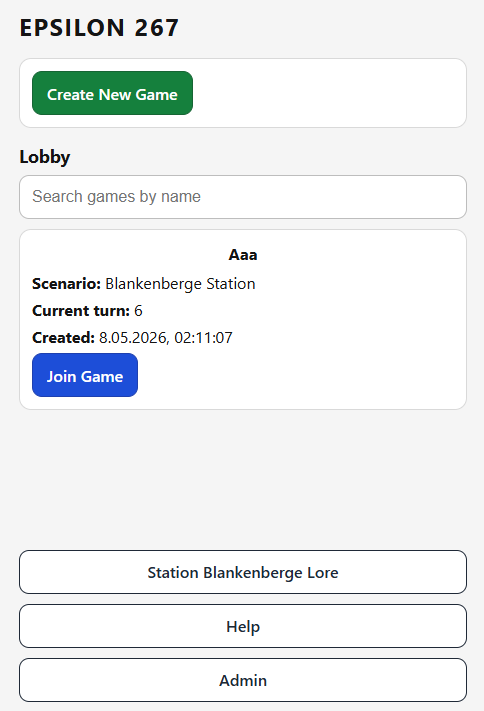
The main screen is the only place where the Help page is available. From there, you can create a new game, join an existing game from the lobby, open Help, or enter Admin.
Use Create New Game when you are hosting a new session. Use the Lobby when you want to join an already-created session.
- Create New Game starts a fresh session.
- Lobby lists available sessions and lets players join.
- Help opens this guide.
- Admin is for game/session administration, not normal player play.
Chapter 3: Creating a game
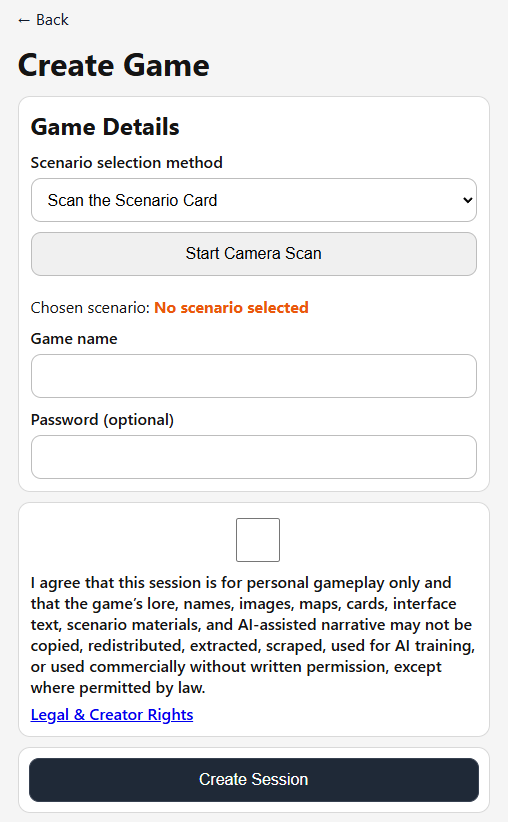
On the Create Game screen, choose the scenario, name the game, optionally set a password, and select the crew characters for this session.
The current create flow supports one to four selected player characters. The session cannot be created until a scenario, game name, and valid crew selection are present.
- Choose a scenario selection method.
- Enter a clear game name so players can find it in the lobby.
- Add a password if the table should be private.
- Select between one and four characters.
- Press Create Session when the button becomes enabled.
Chapter 4: Joining a session and choosing a role
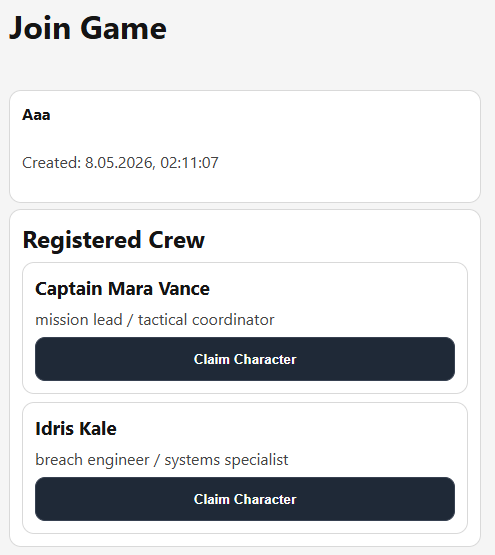
Players join a session from the lobby. Each player claims one of the selected crew roles. The game waits until all required roles are connected before moving into the intro stage.
If a session has a password, players must enter it before joining.
- Open the game from the lobby.
- Claim your assigned character.
- Wait until all selected crew members have joined.
- Read your briefing when the intro appears.
- Hold Ready when everyone is prepared to begin.
Chapter 5: Turn structure
A turn is split into several phases. Some phases ask players to update the physical board, while others ask each player to choose an action.
When the app gives board manipulation instructions, apply them on the table first. Then confirm in the app.
- Intro: read briefing and role information, then mark Ready.
- Board Tiles Manipulation: place, remove, or adjust map tiles as instructed.
- Entities Manipulation: move or update figures such as players, NPCs, and enemies.
- Objects Manipulation: place or update object tokens.
- Narrative Finalization: wait while the app prepares story output.
- Action Declaration: choose one action for your character.
- Resolution: the app resolves actions, updates results, and advances the game.
Chapter 6: Reading the player HUD
The player HUD shows the current turn, your character status, your current narrative, and the action buttons available to you.
Action buttons are context-sensitive. They appear only when the action is legal or relevant for your current position and phase.
- HP means Health Points.
- PP means Power Points.
- Current tile shows where your character is located.
- Narrative text describes what your character currently knows or experiences.
- Disabled buttons usually mean the phase is not accepting actions, or you already declared your action.
Chapter 7: Declaring actions
During the action declaration phase, choose one available action. To avoid accidental taps, gameplay buttons use a long-press confirmation.
After declaring an action, wait until the other players have also declared. The app will then resolve the turn.
- Hold an enabled action button until the confirmation completes.
- You can declare only one action per declaration phase.
- After your action is submitted, the HUD shows that you are waiting for the other players.
- If no useful action is available, choose Stay and Rest.
Chapter 8: Standard actions
The available standard actions depend on your tile, nearby entities, nearby objects, and the current phase.
- Move North, East, South, or West: appears only for legal connected exits from your current tile.
- Stay and Rest: remain in place and take no active interaction.
- Attack: appears when another living entity is on your tile.
- Use Object: appears when an object is on your tile. Some objects can only be used once.
- Talk: appears when a friendly player or NPC is on your tile.
Chapter 9: Special actions
Some characters have limited-use special actions. The number of remaining uses is shown in the action button label.
Special actions appear only when their conditions are valid.
- Mara Vance — Threat Sweep: scans living enemies and reports their distance through legal routes. 3 uses.
- Idris Kale — Systems Ping: reveals surrounding unrevealed station sections. 3 uses.
- Dr. Hana Okoye — Emergency Triage Burst: heals injured friendly players or NPCs on her tile. 3 uses.
- Luka Petrov — Breach Assault: performs a stronger attack against a living enemy on his tile. 2 uses.
Chapter 10: Objects and mission progress
Objects are important mission tools. Move to the object’s tile and use the object when the button appears.
Some objects provide information or improve the crew. Others control mission-critical progress.
- Research Terminal: can reveal key mission information.
- Weapons Stash: improves a player’s combat capability; each player can use it once.
- Medical Station: restores a player to default health.
- Vault: requires the vault code before research logs can be retrieved.
- Escape Pod: launches the escape sequence.
Chapter 11: Practical table rules
The app is the source of truth for turn phase, action legality, and narrative resolution. The physical board is the shared tactical representation and must be kept synchronized.
When in doubt, pause and compare the table state with the latest app instruction before continuing.
- Apply board instructions in order.
- Confirm only after the physical table has been updated.
- Do not move figures or tokens unless the app instructs it or an action resolves it.
- Keep phones connected while playing.
- If a player disconnects, return to the session from the lobby and reclaim the role if needed.